Creating a Vim Cheatsheet VSCode Extension Using Claude Code
It All Started When I Bought an HHKB Layout Keyboard
There’s something people close to me, including my wife, always say: that I don’t have much material desire. For a developer, I’m not very interested in or greedy about peripherals; I tend to just use whatever is given. However, like any other day, I was just coding when I suddenly felt bored with the situation. Maybe I just wanted to try a cool, clicky keyboard like other people. And I also don’t really like things that are just ordinary.
Actually, Vim is a tool I’ve used since my college days, especially a lot during my time as an embedded developer working in the US. That doesn’t mean I used it well. I just used it because I had to, and I stopped using it once I found out how to port and use C in Xcode. As I mentioned earlier, I get very interested in things that are not ordinary. I’m not sure why the video “A ‘real developer’ must use Vim” was so appealing to me at the time, but just like that, I bought an HHKB layout keyboard thinking, “If I’m a developer worth my salt, I should at least try a keyboard that’s good for Vim.”
Originally, I wanted to buy a Happy Hacking keyboard, but not wanting the ordinary option even here, I bought the Q60 Pro Max made by Keychron with an HHKB layout. I plan to write a blog post about my experience with the keyboard later.

In the end, after buying a keyboard with an unconventional key layout, I became ambitious, wanting to properly learn Vim and become a developer who looks different from the rest. So, I immediately installed the Vim extension, and less than a week later, I ended up disabling the feature again. I couldn’t remember the shortcuts I learned today by tomorrow, and the unfamiliar structure made it difficult to get used to, which gradually slowed down my work progress, so I had no choice.
A while later, I got ambitious again and installed the Vim extension, but this process just kept repeating like a Dormammu loop.

Is There a Way to Check Shortcuts Instantly?
I had a clear motivation to master Vim. The problem was that there was no good method to help me see this motivation through to the end. I tried displaying Vim shortcuts on the screen, and I also tried printing them out and placing them next to my monitor, but ultimately, the process of ‘finding the shortcut I wanted’ in the middle of development was very inconvenient.
Lately, I’ve been very enthusiastic about developing various things using AI agents, subscribing to Claude Code, and buying books. I wanted to try what’s called ‘vibe coding’ (a term I don’t particularly like), but I was struggling because I didn’t really have a program I wanted to develop. They say that ‘vibe coding’ starts with developing what you feel you need the most. That’s when it hit me.
“Ah! If I make the Vim shortcuts into a VSCode extension, I can use it too!”
Creating an Extension That Provides Vim Shortcuts in Various Languages
vim.rtorr.com is a site that provides Vim shortcuts in various languages. This site offered shortcuts in about 37 languages and was based on an MIT license, so I was able to gather the data needed for the extension by referencing it.
At first, I intended to create an extension that provided all 37 languages, but in the end, I built the extension based on the 8 most commonly used languages.
- English
- Korean
- Simplified Chinese
- Japanese
- Spanish
- German
- French
- Portuguese
Setting Up CLAUDE.md
This is the recommended sequence for vibe coding these days:
- Have Gemini review the overall flow and idea, and create a document (CLAUDE.md) that can be passed to Claude Code.
- Request Claude Code to develop based on the CLAUDE.md file.
- Appreciate the finished program.
So, I did the same and first told Gemini about my idea for the program and the development direction.
“I bought an expensive HHKB (Happy Hacking layout) keyboard and I’m trying to code using Vim, but I can’t seem to get the hang of it even after several attempts… Maybe it’s because my usual coding habits are so ingrained. So, I tried keeping Vim shortcuts open in a separate window, but my productivity dropped too much. Are there any extensions or features in VSCode that let you check shortcuts instantly while using Vim? If not, would it be difficult to create such a feature and make it into an extension?”
Gemini understood my heartfelt plea and drafted a splendid CLAUDE.md file so that Claude Code could understand and develop it well. Of course, I refined the final version as shown below while resolving issues and concerns that came up during our chat.
- The CLAUDE.md file I used can be found here.
Requesting Claude Code to Develop Based on CLAUDE.md
Now, I put the CLAUDE.md file into the development directory and called Claude. Before starting development using CLAUDE.md right away, I looked at the overall table of contents and asked if there were any deficiencies or items that needed to be addressed first. After resolving the unclear parts with Claude, I proceeded with the tasks one by one.
To briefly summarize the overall steps taken:
-
First, I created a feature to scrape Vim shortcuts for each language from vim.rtorr.com. Then, I collected data for Korean and English, which I had initially planned.
-
At first, I only planned to support Korean and English, but I thought I might as well add a few more while I was at it, so I discussed with Claude which languages would be good to add. Claude suggested limiting it to about 8 languages because adding all 37 could make the data size larger than the deployable extension limit, and I accepted that opinion. I was impressed by Claude’s efficiency in cutting down the work. Since the scraping function was already built, collecting the remaining languages was quick.
-
I thought someone might already be using the default shortcut (Cmd+K+V). So, I suggested providing a feature in the extension to change the shortcut, saving users the trouble of going into the settings menu. Claude strongly agreed with this part.
Deploying the Extension
This was my first time doing this, so I proceeded using the method Claude taught me + Googling (Reference site).
- You need to create an account in Azure DevOps.
- You need to register as a Publisher on the Marketplace.
- You need to issue a Personal Access Token.
- In the terminal (local) where you want to deploy the extension, use the
vsce logincommand to enter your publisher ID and Personal Access Token. - Use the
vsce packagecommand to package the extension. - Use the
vsce publishcommand to deploy the extension.
Additionally, the contents of the developed extension’s package.json must match the publisher information (ID) and the extension’s information. I’ll omit this part from this article, as you can easily find it by Googling or asking an AI.
Also, when you use the vsce publish command, it checks if an extension with the same name already exists on the Marketplace. If a duplicate name exists, an ERROR will occur, so to prevent this, you must check in advance that the extension name you are thinking of is not already taken.
A Very Satisfying Result
In total, the work took about 1 hour. Excluding the time I spent eating chocolate and drinking coffee, I think it could easily be done within 30 minutes.
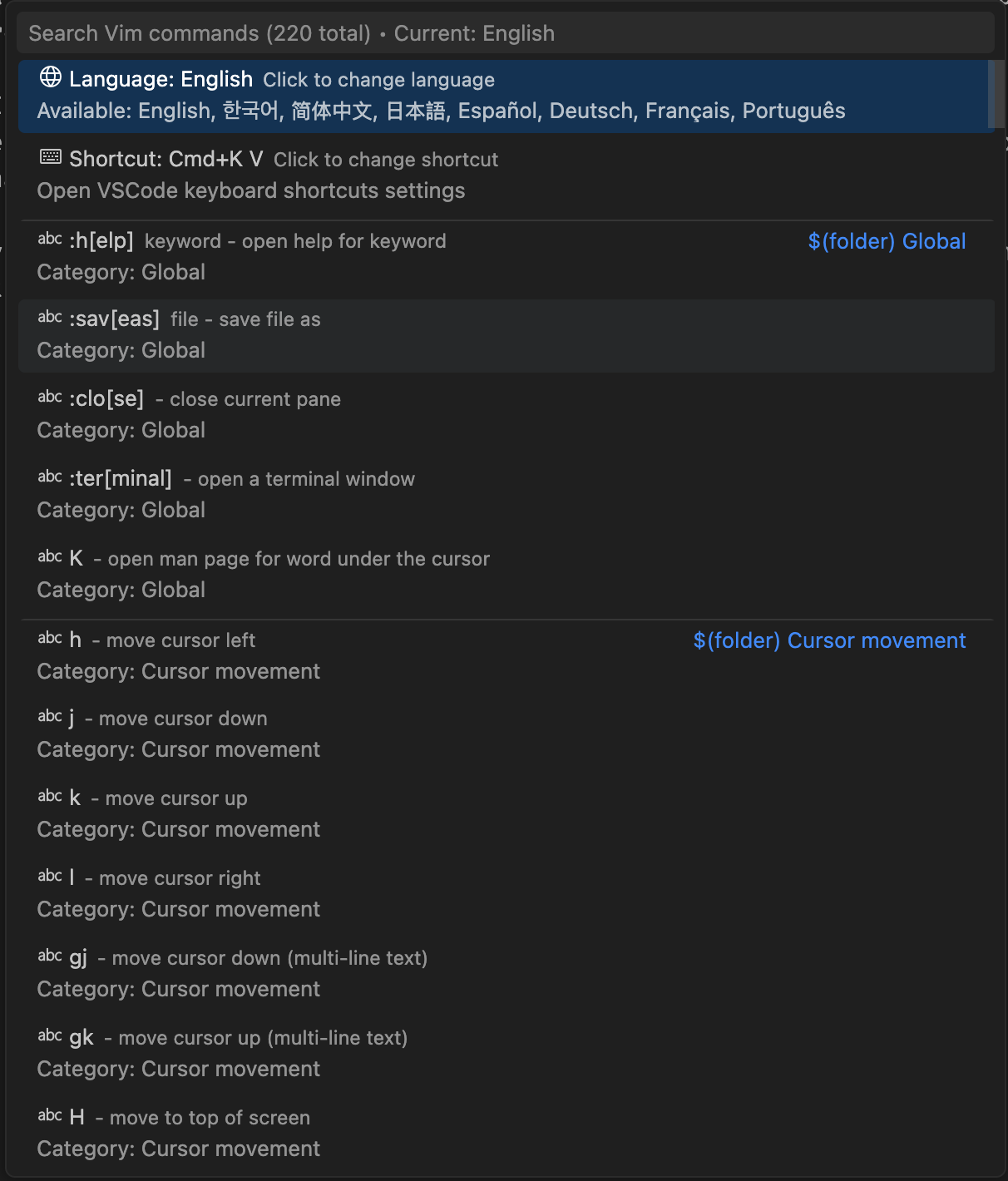
- The deployed extension can be found here.
- If you can’t find it on the Marketplace, you can install it via the v1.0.0-release.
- You can check the written code through the github repository.
Final Thoughts
I’ve briefly written about my thoughts on vibe coding in a previous post, but as AI continues to advance, I feel like developers like me have gained an ‘incredibly smart assistant.’ I use the term ‘assistant’ because, as I didn’t mention earlier, the user who ordered the development must review the intermediate results that the AI produces.
What’s surprising is that the errors AI makes are decreasing compared to just a few months ago, or even a few weeks ago. In the case of a very simple program like the extension I built this time, it didn’t generate any errors at all. Instead, when I requested modifications or suggested better improvements during development, it reflected them very quickly without conflicting with other parts.
I usually use the ‘tab launcher’ provided by windsurf and ask AI about things I don’t understand or tedious tasks that come up during development. However, after trying to develop from start to finish using Claude Code this time, I found it very convenient to get AI’s help for simple tasks. In the past, it took time to learn a new language or platform and become proficient with it. Now, it seems we are entering an era where there are no major constraints, even when using new languages or platforms, as long as you have the skill to understand the overall flow and read the code.
Of course, I felt it this time too, but it seems difficult for AI to completely replace developers. First of all, I felt that in order to understand each development step well and make good requests, the requester will need basic knowledge, or even more, professional expertise. Rather, I hope that AI serves as an opportunity to make coding, which was once a skill only a select few could do, feel more familiar as a ‘language’ that humans can use.